SSH keys
Please consider whether you really need access to the shell. If you do, continue.
When creating new keys, please always generate ED25519 keys. These are modern, short, and fast keys, preferred over RSA variants. Please consider rotating your old RSA keys and replacing them with elliptic curve cryptography keys (like ED25519).
For Windows 10+, please see the excellent Purdue University tutorial.
This short and simple tutorial only covers the most basic case, when you do not have any SSH keys yet. If you already have an SSH key, you probably know what you are doing and are comfortable adding and managing additional keys.
- Please remember that
ssh-keygenwill create two files. One is private and must be protected at all costs. Do not share it or show it to anyone. Keep it safe. Use a strong passphrase when creating the key. - The second file is public. You can print it on a t-shirt, send it via e-mail, or publish it on your website.
- These two keys are cryptographically bound together. The public part will be copied to the Faculty's servers. When connecting to those servers, the
sshclient will use your private key. The server will check if those two keys match and grant access if they do.
Create an SSH key
# ssh-keygen -t ed25519
Generating public/private ed25519 key pair.
Enter file in which to save the key (~/.ssh/id_ed25519):
Enter passphrase for "~/.ssh/id_ed25519" (empty for no passphrase):
Enter same passphrase again:
Your identification has been saved in id_ed25519
Your public key has been saved in id_ed25519.pub
The key fingerprint is:
SHA256:6+DetB4FrHiDoQ6h6zFuV1b2QbEUHox/dAgbpK1i6IE kamil@wilk
The key's randomart image is:
+--[ED25519 256]--+
|        +O+ .    |
|       o=o=o .   |
|.   .  .==. .    |
|.....+ +.+ .     |
|oE.ooo*.S +      |
| +. o+.. +       |
|.o..o . +        |
|o.o. . = o       |
|.o.  .o.=        |
+----[SHA256]-----+
The contents of the created public key are:
# cat ~/.ssh/id_ed25519.pub
ssh-ed25519 AAAAC3NzaC1lZDI1NTE5AAAAIIV4NJw537MxsxqM9nuTnKy519vEKmT/AigGyf+Bs6ca
SSH keys and Gitlab
Adding your public SSH key to the Faculty's GitLab instance can be accomplished in a few simple steps.
-
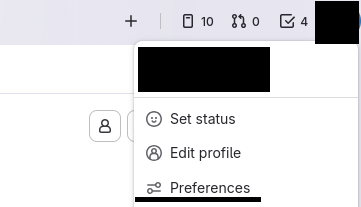
Select Preferences from the top-right menu (click on the user's icon).
-
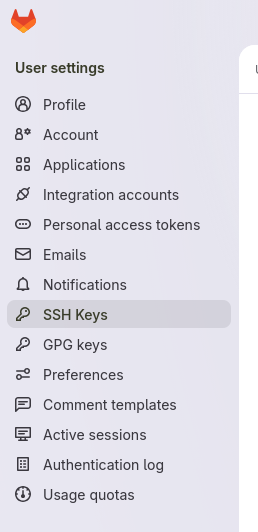
Select SSH Keys from the menu on the left side of the page.
-
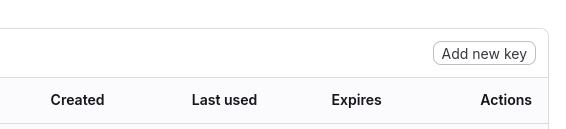
Click on the Add new keys button.
-
Paste the contents of the public part of the key to the text area (public part is the file with
.pubextension). Optionally, remove the expiration date from the key (if you won't do this, you will have to rotate the key in the due date. This is not a bad thing.).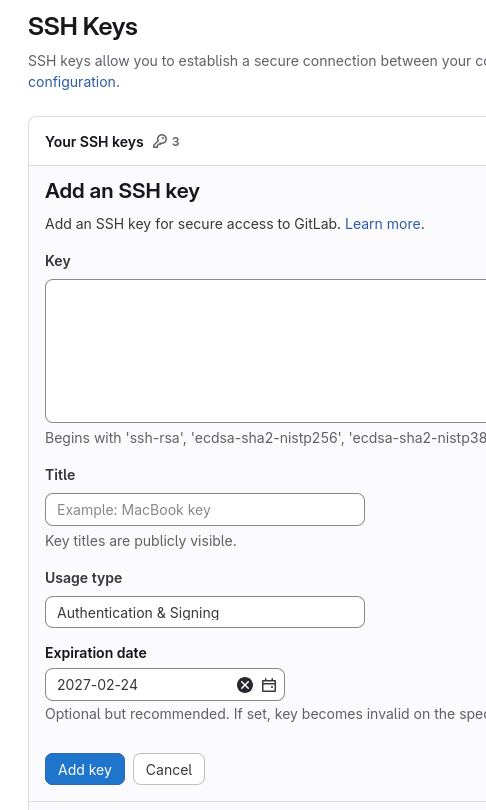
-
Remember to click the Add key button.
-
If you have completed all the steps correctly, the key should be accessible from the internet at the following URL (replace
loginwith your real login):
https://gitlab.mimuw.edu.pl/login.keys